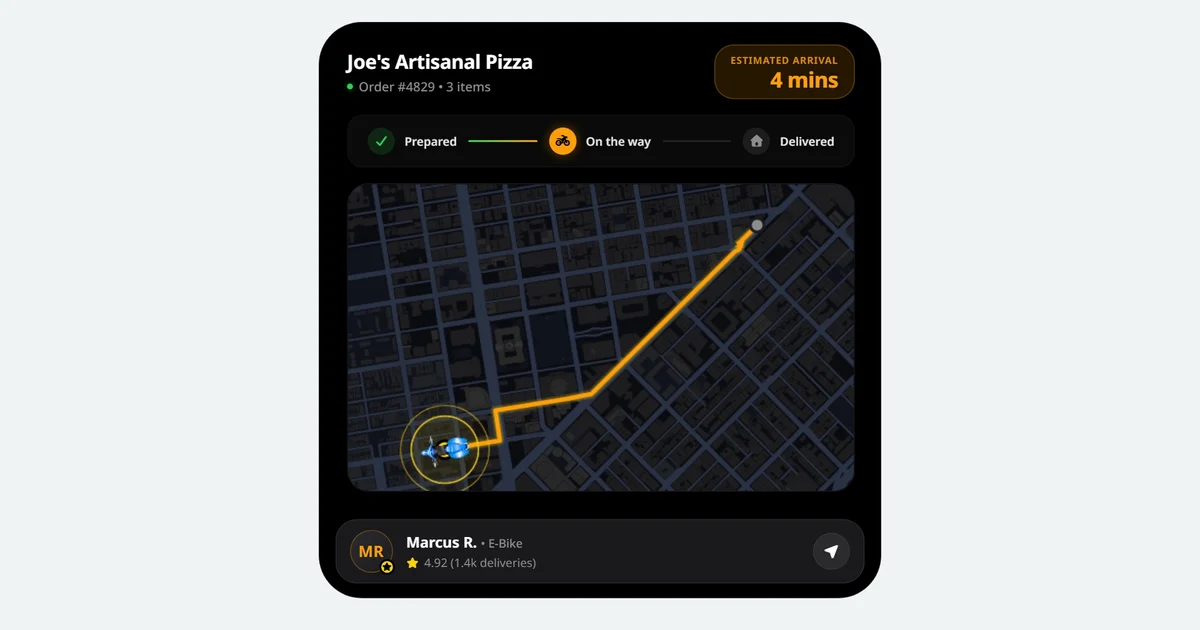
How to Create UI Notification Animations with AI

How to Create UI Notification Animations with AI

·8 min read

Quick Summary

  • AI allows you to generate UI notification animations in seconds rather than hours of manual keyframing.
  • Easymotion provides a chat-based interface on the left side of the screen for real-time customization of text, icons, and colors.
  • Exporting in MOV format with transparency is the best way to overlay notifications in professional editors like Premiere Pro.
  • Using AI-generated mockups saves significant time and money compared to hiring freelance motion designers.

What is a UI Notification Animation?

A UI notification animation is a digital motion graphic that simulates a system alert, mobile push notification, or in-app message. These animations typically feature a small box or bubble that slides, pops, or fades into the frame to inform a user about a specific event. In modern video production, a UI notification animation is used to showcase app features, simulate real-world communication, or guide a viewer's attention during a product demo without needing to film a physical device.

I used to spend hours in Adobe After Effects just to get a single WhatsApp bubble to slide in with the right easing. If the client wanted to change one word of text, I had to redo the entire keyframing process. In 2026, that manual grind is unnecessary. You no longer need to be a motion graphics expert to create a professional push notification mockup or a message notification video. AI-powered tools now allow you to generate these assets by simply describing what you want in plain English.

How to Create UI Notification Animations with Easymotion

Building a custom notification does not require any design background. Easymotion uses a chat-based interface that handles the animation logic for you. Here is the mechanical step-by-step process to get your first notification ready for your next project.

1Getting Started

First, navigate to Easymotion in your web browser. On the homepage, click the "Start Creating" button. You will be prompted to log in or sign up for an account. Once you are inside the studio interface, you are ready to begin. There is no need to set up complex project settings or canvas sizes manually because the AI handles the initial configuration based on your needs.

2Choosing a Template or Describing the Prompt

You have two ways to start. You can browse the templates page to find a style that matches what you need, or you can use the text input box to describe your animation from scratch. For example, you can type a prompt like: "Create a mobile push notification from WhatsApp that says 'Hey, are we still meeting at 5 PM?' with a small profile picture icon."

easymotion.io

AI Motion Graphics Generator

Describe your motion graphics idea. Add a design reference if you'd like it to be recreated.

16:9
Image to Animation
Data to Animation
Map Animation

A sleek UI notification animation generated via an AI prompt.

If you prefer to start with a specific style, look for the "Social & Ads" or "Mockups & UI" categories in the template library. This is a great way to see how different notification styles look before you start customizing them. This process is much faster than traditional methods, as notifications are often more contained and easier to iterate on.

3Customizing via the AI Chat

Once your initial animation is generated, you will see it on the main canvas. To make changes, look at the AI chat panel on the LEFT side of the screen. This is where you give instructions to the AI to refine the design. You can type commands like "Change the background color to a light blue" or "Make the notification stay on screen for 5 seconds instead of 3."

Customizing a file sync notification using simple chat commands.

For OS-style notifications, such as a file upload or a system sync alert, you can tell the AI to "Update the icon to a cloud upload symbol and change the text to 'Syncing 542 files'." The system updates the video automatically. This chat-driven workflow is similar to how you would build other visual elements, such as those found in our tutorial on how to create animated flowchart diagrams.

4Exporting the Animation

When you are happy with the look and timing of your UI notification animation, it is time to export. Click the Export button located in the TOP RIGHT corner of the screen. You will see several options for format and resolution. If you want a standard video file to upload directly to social media, select MP4. However, if you plan to use this as an overlay in a video editor like Premiere Pro or DaVinci Resolve, you must choose the MOV format. After selecting MOV, check the "Transparent" option. This ensures that only the notification bubble is visible, allowing you to place it over any background in your editing software.

Export your animation in transparent MOV or standard MP4 format.

Copy-Paste Prompts for Your Animation

Speed up your workflow by using these exact text prompts in the Easymotion studio. Just copy and paste them into the prompt box.

WhatsApp Message Notification

Create a mobile push notification from WhatsApp that says 'Hey, are we still meeting at 5 PM?' with a small profile picture icon.

Banking App Alert

Create a push notification for a banking app that says 'You received $500.00' with a green dollar sign icon and a white background.

System Sync Notification

Generate a desktop system notification that says 'Syncing 542 files...' with a blue cloud upload icon and a progress bar.

Use Cases for UI Notification Animations

Notification animations are versatile tools that serve different purposes depending on your industry. Whether you are a creator or a business owner, these small motion details can significantly increase the production value of your content.

For YouTubers and Content Creators

Creators often use a push notification mockup to drive engagement. Instead of just asking people to subscribe, you can show a simulated notification popping up on the screen that says "New Subscriber: [Name]!" This visual cue is much more effective at grabbing attention than a static image. You can also use a message notification video to simulate a text conversation between characters in a storytelling video or a tutorial. It adds a layer of realism that keeps viewers engaged with the narrative.

For Marketers and Brands

Marketers use these animations to highlight urgency. A well-timed notification in a social media ad can mimic the feeling of a real alert on a user's phone, causing them to stop scrolling. If you are promoting a sale, you might use a notification that says "Flash Sale: 50% off ends in 2 hours!" You can even pair these with other data-driven visuals. For instance, using an AI Data Chart Animation Maker alongside a notification can show a user receiving an alert about their business growth in real-time.

For Startups and Product Founders

When you are building a product demo, you need to show how your software interacts with the user. Using AI to generate these notifications saves thousands of dollars that would otherwise go to a freelance motion designer. You can demonstrate file syncs, incoming messages, or security alerts with perfect precision. If your app involves complex logic, you might also find it helpful to use an AI Flowchart Animation Maker to explain the backend process before showing the final notification the user sees on their screen.

UI Notification Animation: Traditional Method vs AI

Choosing the right workflow depends on your budget and technical skills. Here is how the AI-powered approach in 2026 compares to the traditional manual methods used in the past.

FeatureTraditional (Adobe After Effects)Easymotion AI
Time to Create1 to 3 hoursLess than 60 seconds
Skill RequiredHigh (Professional Designer)None (Chat-based)
Cost$22.99/month + AssetsStarting at $10/month
Learning CurveMonths to masterMinutes
Export OptionsComplex (Alpha Channels)One-click Transparent MOV

Frequently Asked Questions

With Easymotion, it typically takes less than a minute to generate a professional UI notification animation. The AI handles the design and motion logic, allowing you to focus on your content.

No, you do not need Adobe After Effects. Easymotion is a web-based AI tool that creates professional push notification mockups without any specialized design software or technical skills.

Yes, you can fully customize colors, icons, fonts, and timing using the AI chat panel on the left side of the Easymotion studio to ensure the animation fits your brand perfectly.

Yes, you can generate a WhatsApp message notification video by choosing a template or using a prompt to specify the sender, message text, and app icon.

Written by Gokul Ramesh

Co-Founder, Easymotion

Motion designer and AI engineer building the fastest way to create professional animations. Eliminating the After Effects learning curve so you can bring ideas to life at the speed of thought.