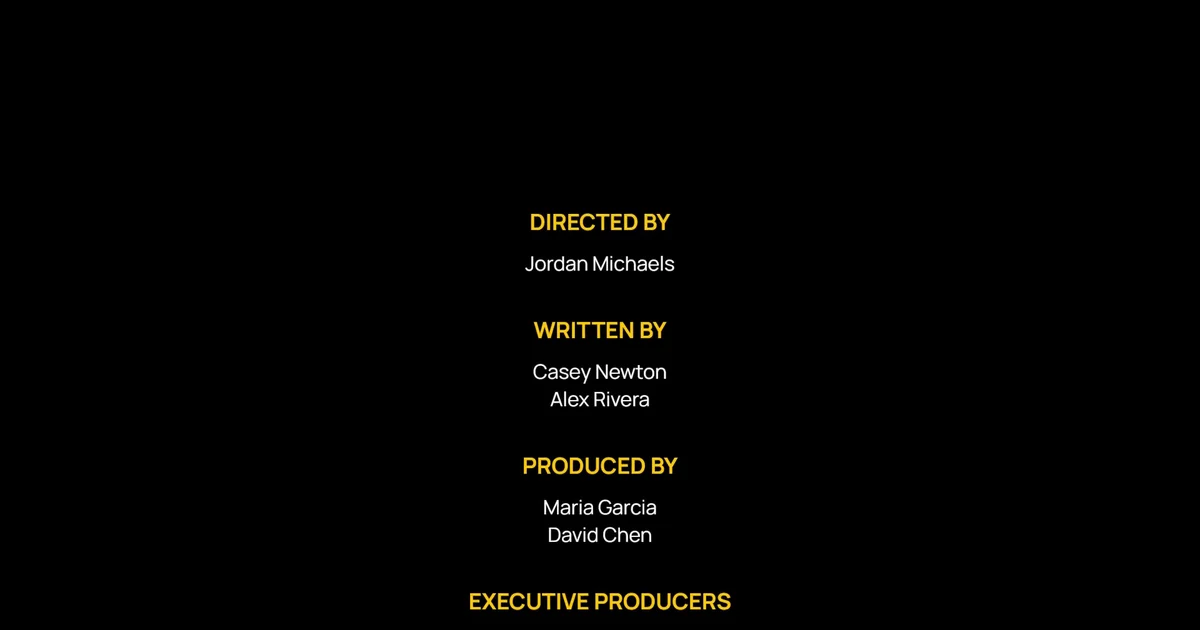
I used to spend three hours lining up two columns of names for a rolling credit scroll in Adobe After Effects. One change to the font size would break the alignment and force me to start over. You can now generate that same credit roll with AI motion graphics tools.
How to Create Rolling Credits with Easymotion
With Easymotion, you can skip the timeline entirely. You do not have to align the names or set the scroll speed by hand. Here is exactly how to generate your credit roll.
1Open the Studio
First, navigate to Easymotion in your web browser and click the "Start Creating" button. You will be prompted to log in or sign up for a free account. Once logged in, you will enter the main studio interface.
2Enter Your Prompt
You have two options to create your end credits. You can browse the template library to find a pre-made credits style, or you can describe what you want in the prompt box. For example, type: "Create rolling credits on black, with yellow role headers and white names, from Directed By Jordan Michaels to Sound Design Harper Lee."
AI Motion Graphics Generator
Describe your motion graphics idea. Add a design reference if you'd like it to be recreated.
Rolling credits on black, from Directed By Jordan Michaels to Sound Design Harper Lee.
Have the cast and crew in a spreadsheet? Click the paperclip, choose Add Data (CSV/XLSX), and attach it instead of typing every name.
3Customize Using AI Chat
Once your base animation generates, you can adjust the details using the AI chat panel located on the left side of the screen. Just type commands directly into the chat. For example, type: "Change the ending to a typewriter line that reads The Story Begins." The system updates your video automatically.
A typewriter line on black that reads The Story Begins.
4Export Your Animation
When you are happy with the result, click the Export button in the top right corner and select the MP4 format for a standard video file. To overlay this credit roll onto another video, make the background transparent first: ask the chat for a transparent background, or press the checkerboard button on the background color in Quick Edit. When the preview shows a checkerboard, export in the MOV format and drop the file into Premiere Pro or DaVinci Resolve.
Copy-Paste Prompts for Your Animation
Paste one into the prompt box in Easymotion, then change the details to fit your video.
Prompt 1: Classic Credits
Prompt 2: Navy Credits
Prompt 3: Vertical Credits
Adobe After Effects vs AI Motion Graphics
A credit roll used to mean aligning every name and keying the scroll by hand. Here is how that work compares to Easymotion in 2026.
| Aspect | Adobe After Effects | Easymotion |
|---|---|---|
| Time to Create | About three hours for one credit roll | Under 60 seconds |
| Skill Required | Name columns aligned and a scroll keyed by hand | No design skills needed |
| Cost | A Creative Cloud subscription | Plans start at $10/month (free plan for template editing) |
| Learning Curve | Weeks to keep long lists aligned and readable | Instant text prompts |
| Export Options | A manual render after every name change | One-click MP4 or transparent MOV |