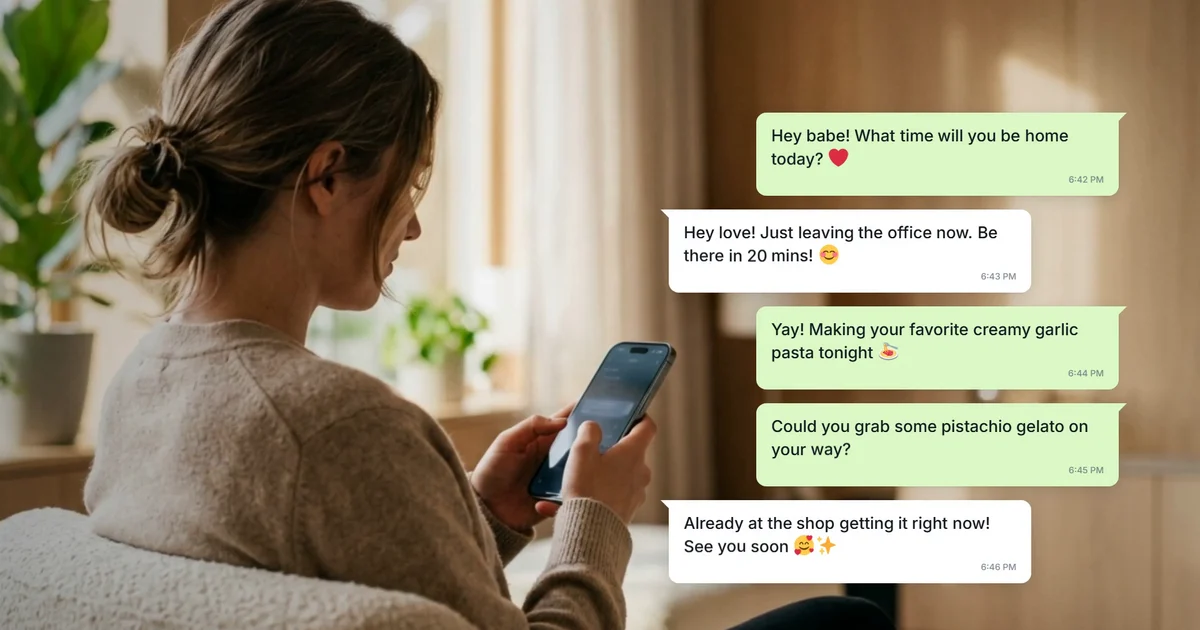
How to Create Realistic Chat UI Animations with AI

How to Create Realistic Chat UI Animations with AI

·6 min read

Quick Summary

  • Generate a full WhatsApp or Messenger chat animation in under 60 seconds — just describe the conversation in a text prompt.
  • Customize message bubbles, avatars, colors, and timing using plain English in the AI chat panel — no keyframes or timelines.
  • Export as a transparent MOV to layer your chat animation directly onto footage in Premiere Pro or DaVinci Resolve.
  • What took 2–6 hours of manual keyframing in After Effects now takes under a minute — and changing any message text doesn't reset the timeline.

A chat UI animation is a visual simulation of a digital messaging conversation, typically featuring animated text bubbles, typing indicators, and scrolling effects. It is used in marketing videos, UI/UX presentations, and social media content to demonstrate how a messaging app functions or to visualize a dialogue between users. This type of animation mimics the behavior of platforms like WhatsApp, iMessage, or Slack to create a relatable experience for the viewer.

If you have ever tried to build a messaging app demo video manually, you know the frustration. I once spent an entire afternoon in Adobe After Effects just trying to get the 'typing...' dots to sync perfectly with a message pop-up. Every time the client wanted to change a single word, I had to move dozens of keyframes and recalculate the scrolling physics. It was a mechanical nightmare that killed the creative flow.

In 2026, you do not need to touch a timeline or manage complex layers to create a professional WhatsApp animation mockup. AI has turned this hours-long task into a few seconds of work. This guide shows you exactly how to generate high-fidelity chat visuals using natural language.

How to Create Chat UI Animation with Easymotion

Creating a realistic messaging sequence is now a mechanical process rather than a manual labor task. Follow these four steps to build your animation.

1Getting Started

First, head over to Easymotion and click the "Start Creating" button on the homepage. You will be asked to log in or sign up for a free trial. Once you enter the studio, you will see a clean interface. Unlike traditional design tools that overwhelm you with buttons, the workflow here starts with your prompt or a template choice.

2Choosing a Template or Describing the Prompt

You can either browse the template library for a pre-made layout or type a prompt into the text input box. For a chat UI animation, try a literal prompt like: "Create a WhatsApp chat animation where a customer asks about a product and the brand representative replies with a helpful link." The AI will generate the layout, bubbles, and scrolling logic automatically.

easymotion.io

AI Motion Graphics Generator

Describe your motion graphics idea. Add a design reference if you'd like it to be recreated.

16:9
Image to Animation
Data to Animation
Map Animation

A realistic chat interface generated instantly using a text prompt.

3Customizing via the AI Chat

After the initial generation, you can refine the details using the AI chat panel on the LEFT side of the screen. This is where you make specific brand adjustments. For example, you can type, "Change the sender's bubble color to blue" or "Make the messages appear faster." For a long back-and-forth conversation, you can paste the whole script into the chat and format it into bubbles. The system updates the video preview in real-time.

Refining message timing and bubble styles through the AI chat interface on the left.

4Exporting the Animation

When you are happy with the conversation flow, click the Export button in the TOP RIGHT corner. For standard social media use, select MP4. If you need to place the animation over other footage in software like Premiere Pro or DaVinci Resolve, choose the MOV format and check the 'Transparent' option. This creates a high-quality file with an alpha channel, removing the need for green-screening.

Export your animation in transparent MOV or standard MP4 format.

Copy-Paste Prompts for Your Animation

Speed up your workflow by using these exact text prompts in the Easymotion studio. Just copy and paste them into the prompt box.

Customer Support Interaction

Create a WhatsApp chat animation where a customer asks for a refund and a support agent provides a helpful link with a friendly tone.

Social Media Storytelling

A fast-paced iMessage style conversation between two friends planning a weekend trip, including typing indicators and scrolling.

App Feature Demo

A clean, modern chat UI showing a user receiving a notification and replying with a confirmation message.

Use Cases for Chat UI Animations

In 2026, messaging visuals are a staple of digital storytelling because they feel familiar and high-engagement for viewers.

For YouTubers and Content Creators

Creators use a WhatsApp animation mockup to illustrate text exchanges in video essays or comedy skits. Instead of using static screenshots that look flat, an animated scroll with typing indicators keeps the audience focused on the story. If you want to expand your visuals, you can also create animated flowchart diagrams to explain complex theories alongside your chat sequences.

A creative storytelling chat animation designed for social media creators.

For Marketers and Brands

Marketing teams use messaging app demo videos to show off customer support speed or app features. Showing a customer asking a question and getting an instant, helpful response builds trust. Many brands also combine these with data. Using an AI Data Chart Animation Maker alongside a chat can show a conversation leading directly to a sales win or a growth chart.

A marketing-focused chat UI showing a seamless customer interaction.

For Startups and Founders

When pitching a new service, you need to show how users interact with your platform. Hiring a designer to build these animations can cost hundreds of dollars. By using an AI Flowchart Animation Maker to map the journey and Easymotion for the UI, founders can create high-end pitch videos for a fraction of the cost. If your product name changes, you just update the chat prompt instead of waiting days for a re-render.

Chat UI Animation: Traditional Method vs AI

The best workflow depends on your technical needs. Here is how the AI-powered approach at Easymotion compares to the manual method in Adobe After Effects.

FeatureTraditional Method (After Effects)Easymotion AI
Time to Create2–6 Hours30–60 Seconds
Skill RequiredHigh (Professional Motion Designer)None (Natural Language)
Cost$22.99/mo + Asset CostsStarting at $10/month
Learning CurveMonths to MasterInstant
Export OptionsAll FormatsMP4, Transparent MOV

Frequently Asked Questions

With Easymotion, the initial generation of a chat animation takes about 10 to 15 seconds. Customizing the text and colors via the AI chat on the left side of the screen takes another minute or two. You can go from an idea to a finished export in under five minutes.

No, you do not need specialized design skills or software like After Effects. The platform is built for users who want professional results using simple text prompts. The AI handles all the complex motion paths and layout logic for you.

Yes, everything is customizable. You can change the sender names, profile pictures, message text, bubble colors, and background images. You can also adjust the timing of when each message appears to match a specific voiceover track.

Yes, Easymotion supports transparent exports. Click the Export button in the top right corner, select the MOV format, and check the 'Transparent' option. This allows you to use the animation as an overlay in Premiere Pro or DaVinci Resolve.

Written by Gokul Ramesh

Co-Founder, Easymotion

Motion designer and AI engineer building the fastest way to create professional animations. Eliminating the After Effects learning curve so you can bring ideas to life at the speed of thought.