How to Create a Map Pin Animation with AI

How to Create a Map Pin Animation with AI

April 1, 2026·5 min read

Quick Summary

  • A map pin animation visually highlights geographic locations for travel vlogs, real estate, and presentations.
  • You can generate professional animated map markers using AI text prompts, completely skipping the steep learning curve of Adobe After Effects.
  • Easymotion lets you customize map styles, camera movements, and custom map pins using a simple chat interface.
  • To overlay your travel map animation onto other footage, export it as a transparent MOV file.

A map pin animation is a dynamic motion graphic where digital markers drop, bounce, or appear on a geographic map to highlight specific locations. These animations are widely used in YouTube travel vlogs, real estate presentations, and corporate videos to establish geographic context. I used to build multi-city map sequences manually in Adobe After Effects, and just getting the map tiles to load correctly took hours. Animating five separate pins bouncing in sync across the screen was an incredibly frustrating process. Traditionally, creating a map pin animation required complex keyframing, expensive plugins like GEOlayers, and advanced design skills. Today, you can use an AI-powered location pin maker to generate professional animated map markers in seconds just by typing a text description.

Key Takeaways

  • A map pin animation visually highlights geographic locations for travel vlogs, real estate, and presentations.
  • You can generate professional animated map markers using AI text prompts, completely skipping the steep learning curve of Adobe After Effects.
  • Easymotion lets you customize map styles, camera movements, and custom map pins using a simple chat interface.
  • To overlay your travel map animation onto other footage, export it as a transparent MOV file.

How to Create a Map Pin Animation with Easymotion

You do not need to be a motion designer to create high-quality travel map animations. Follow these exact steps to generate your first animated map.

1Getting Started

Open your web browser and go to easymotion.io. On the homepage, click the Start Creating button. You will be prompted to log in or sign up for an account. Easymotion offers a free trial so you can test the platform before committing to a plan, which starts at $10 per month.

2Choosing a Template or Describing the Prompt

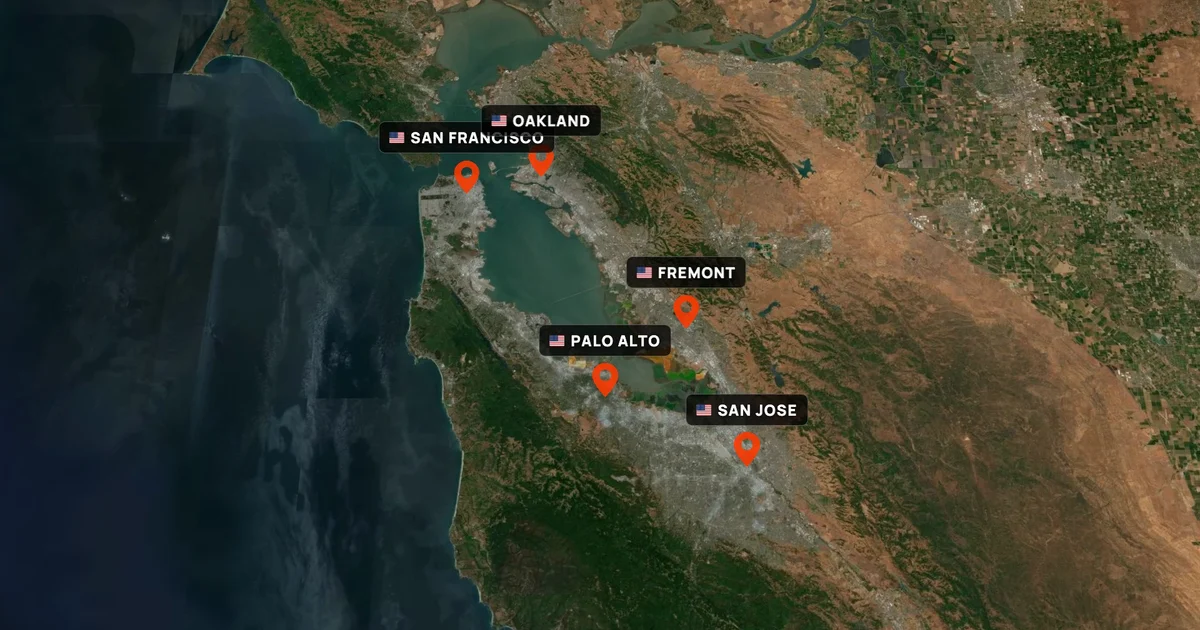
Once you are in the studio, you have two options. You can browse the templates library to find a style you like, or you can generate a custom map from scratch by typing a description into the text input box. For this tutorial, we will create a satellite map of the San Francisco Bay Area.

Type this exact prompt: "Create a satellite map of the San Francisco Bay Area featuring multiple red location pins, text labels, and US flags dropping on San Francisco, Oakland, Fremont, Palo Alto, and San Jose." Hit enter, and the AI will generate your map.

easymotion.io

AI Motion Graphics Generator

Describe your motion graphics idea. Add a design reference if you'd like it to be recreated.

16:9
Image to Animation
Data to Animation
Map Animation

Example of an AI-generated map pin animation highlighting specific locations.

3Customizing via the AI Chat

After the initial generation, you might want to tweak the colors, timing, or camera angles. You can do this using the AI chat panel located on the left side of the screen. You do not have to touch a timeline.

Simply type mechanical commands into the chat. For example, you can type, "Change the red location pins to blue," or "Make the camera zoom in closer to Palo Alto before panning to San Jose." The system processes your request and automatically updates the video preview.

Customizing the map style and marker appearance using AI chat commands.

4Exporting the Animation

When you are happy with your map marker animation, click the Export button in the top right corner of the screen. A menu will appear with your format options.

If you just need a standard video to upload directly or use in a presentation, select the MP4 format. If you plan to overlay this animation onto other footage in editing software like Premiere Pro or DaVinci Resolve, you need a transparent background. MP4 does not support transparency. You must choose the MOV format and check the Transparent option before exporting.

Copy-Paste Map Pin Animation Prompts

Getting the best results from an AI location pin maker comes down to how well you describe your vision. Here are specific, ready-to-use prompts you can copy directly into Easymotion.

Prompt 1: Multi-City Satellite Map
"Create a realistic satellite map animation of the US East Coast. Drop bright yellow custom map pins on New York City, Philadelphia, and Washington DC sequentially. Add a subtle camera pan moving south as each pin drops."

Prompt 2: Clean Corporate Infographic
"Generate a minimalist 2D map of Europe in a dark mode color palette. Place glowing blue animated map markers on London, Paris, and Berlin. Include clean white text labels for each city."

Prompt 3: Vertical Social Media Format
"Create a vertical 1080x1920 travel map animation of Japan. Show a red location pin dropping on Tokyo, then draw an animated dotted line connecting to a second pin in Kyoto. Make the map style bright and colorful."

Copy-Paste Prompts for Your Animation

Speed up your workflow by using these exact text prompts in the Easymotion studio. Just copy and paste them into the prompt box.

Multi-City Satellite Map

Create a realistic satellite map animation of the US East Coast. Drop bright yellow custom map pins on New York City, Philadelphia, and Washington DC sequentially. Add a subtle camera pan moving south as each pin drops.

Clean Corporate Infographic

Generate a minimalist 2D map of Europe in a dark mode color palette. Place glowing blue animated map markers on London, Paris, and Berlin. Include clean white text labels for each city.

Vertical Social Media Format

Create a vertical 1080x1920 travel map animation of Japan. Show a red location pin dropping on Tokyo, then draw an animated dotted line connecting to a second pin in Kyoto. Make the map style bright and colorful.

Use Cases

For YouTubers & Creators

Travel vloggers rely heavily on a travel map animation to show their audience exactly where they are going. Instead of just talking about a long train ride, creators can generate a quick visual showing the route and the specific stops. This keeps viewers engaged and provides geographical context between video clips.

A dynamic travel route map perfect for YouTube vlogs and documentaries.

For Marketers & Brands

Businesses frequently need to display store locations, delivery zones, or global expansion efforts. A marketer can use Easymotion to generate polished videos for social media campaigns. Showing custom map pins popping up across a state or country is a highly visual way to announce new franchise openings or service areas.

For Startups & Founders

Founders pitching to investors often need to illustrate market size or user distribution. Adding a high-quality map marker animation to a pitch deck instantly elevates the presentation. Startups save time and money by generating these graphics internally instead of hiring a freelance motion designer for a single slide.

Map Pin Animation: Traditional Method vs AI

The standard workflow for creating map animations has drastically changed by 2026. Here is how the traditional Adobe After Effects route compares to using Easymotion.

FeatureAdobe After Effects + GEOlayersEasymotion AI
Time RequiredHours to daysSeconds to minutes
Skill RequiredAdvanced motion design and keyframingNone (Text prompts and chat commands)
Cost~$50/mo (AE + GEOlayers + MapTiler)Starting at $10/mo (Basic Plan)
Learning CurveMonths to masterImmediate
Export OptionsAll formats, requires manual renderingMP4 up to 4K, transparent MOV

Frequently Asked Questions

Using an AI platform like Easymotion, you can generate a complete map pin animation in under a minute. You simply type your desired locations into the prompt box, and the system instantly creates the map, places the pins, and animates the camera movement.

No design skills or complex software are required. Traditional methods required tools like Adobe After Effects and plugins like GEOlayers, but modern AI tools allow you to create animated map markers entirely through text descriptions and chat commands.

Yes, you have full control over the visual style. You can use the AI chat panel on the left side of the screen to change the colors of the custom map pins, update the map style to match your brand guidelines, and adjust the typography of the labels.

To overlay your travel map animation onto other video clips, you need to export it with a transparent background. Click the Export button in the top right corner, select the MOV format, check the Transparent option, and then import that file into your video editing software like Premiere Pro or DaVinci Resolve.

Written by Gokul Ramesh

Co-Founder, Easymotion

Motion designer and AI engineer building the fastest way to create professional animations. Eliminating the After Effects learning curve so you can bring ideas to life at the speed of thought.