I used to spend a whole day in Adobe After Effects on thirty seconds of kinetic typography. Every word needed its own scale, position, and blur keyframes, and the timing had to land like a beat. You can now generate that same kinetic type with AI motion graphics tools.
How to Create a Kinetic Typography Animation with Easymotion
With Easymotion, you can skip the timeline entirely. You do not have to keyframe each word by hand. Here is exactly how to generate your kinetic typography.
1Open the Studio
First, navigate to Easymotion in your web browser and click the "Start Creating" button. You will be prompted to log in or sign up for a free account. Once logged in, you will enter the main studio interface.
2Enter Your Prompt
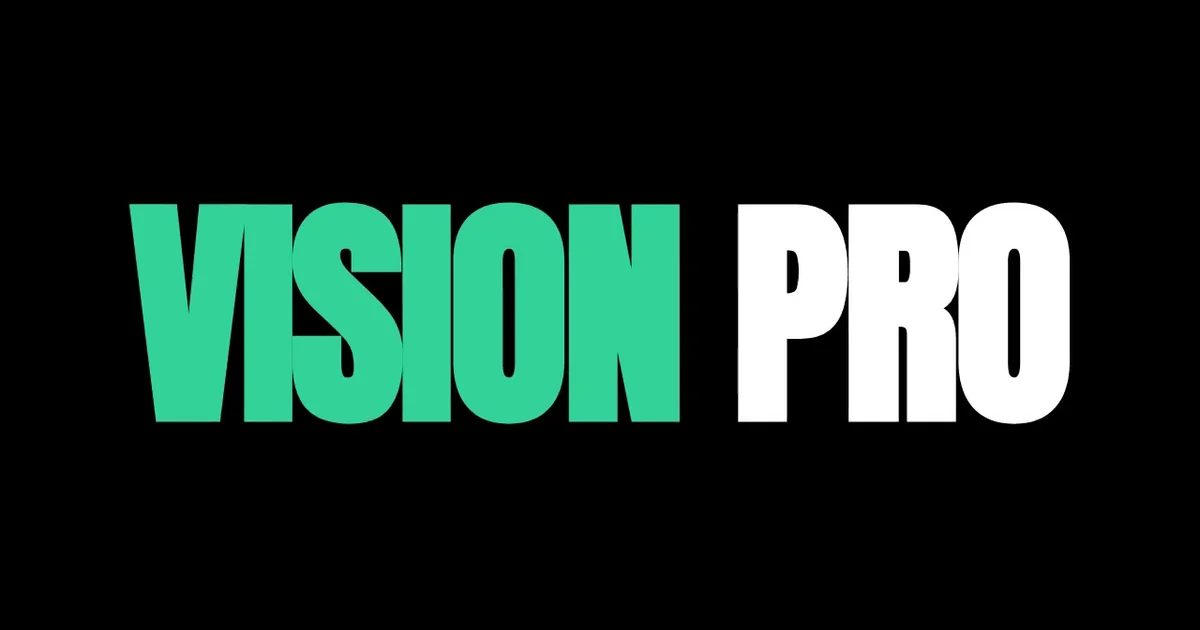
You have two options to create your kinetic typography animation. You can browse the template library to find a pre-made kinetic type style, or you can describe what you want in the prompt box. For example, type: "Create a kinetic typography animation on a black background with bold condensed white words. Slam in FUTURE, NOW, SLEEKER, FASTER, and SMARTER one at a time with motion trails, then end on VISION PRO with VISION in green."
AI Motion Graphics Generator
Describe your motion graphics idea. Add a design reference if you'd like it to be recreated.
Bold white words slam in one at a time, from FUTURE to SMARTER, and end on VISION PRO.
Before you send the prompt, set the number of outputs to 2, 3, or 4. You get several versions of the same words and keep the one you like best.
3Customize Using AI Chat
Once your base animation generates, you can adjust the details using the AI chat panel located on the left side of the screen. Just type commands directly into the chat. For example, type: "Change it to one title, VINTAGE ATTITUDE, in a purple typewriter font. Make the letters melt in with a wavy glitch, then settle and hold." The system updates your video automatically.
The title VINTAGE ATTITUDE melts in with a wavy purple glitch, then settles.
4Export Your Animation
When you are happy with the result, click the Export button in the top right corner and select the MP4 format for a standard video file. To overlay this text onto another video, make the background transparent first: ask the chat for a transparent background, or press the checkerboard button on the background color in Quick Edit. When the preview shows a checkerboard, export in the MOV format and drop the file into Premiere Pro or DaVinci Resolve.
Copy-Paste Prompts for Your Animation
Paste one into the prompt box in Easymotion, then change the details to fit your video.
Prompt 1: Bold Word Slam
Prompt 2: Light Word Slam
Prompt 3: Vertical Word Slam
Adobe After Effects vs AI Motion Graphics
Kinetic typography used to mean keyframing the scale, position, and blur of every single word. Here is how that work compares to Easymotion in 2026.
| Aspect | Adobe After Effects | Easymotion |
|---|---|---|
| Time to Create | 4 to 8 hours per 30 seconds | Under 60 seconds |
| Skill Required | Text animators, easing, and beat timing | No design skills needed |
| Cost | A Creative Cloud subscription | Plans start at $10/month (free plan for template editing) |
| Learning Curve | Months | Instant text prompts |
| Export Options | A full render after every word change | One-click MP4 or transparent MOV |